
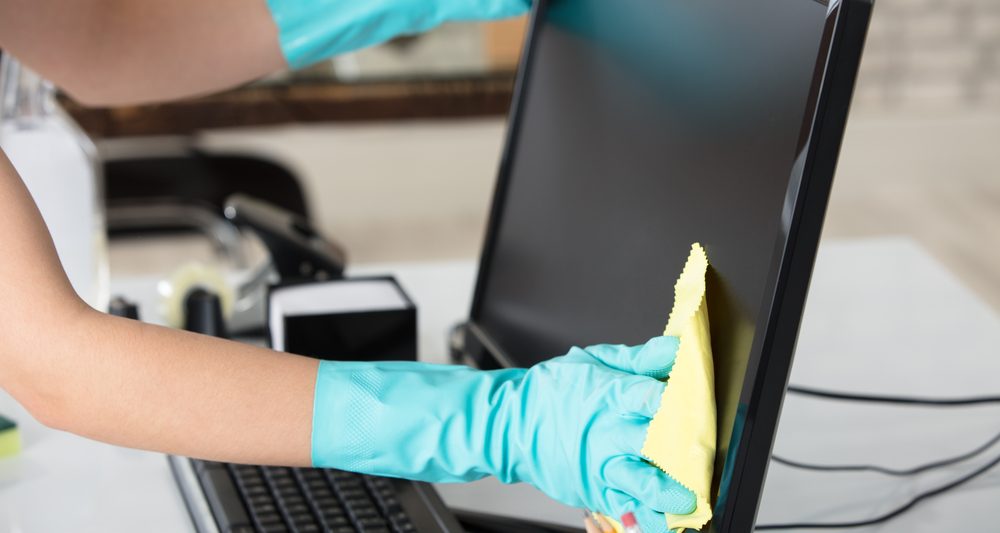
A clean computer screen works wonders!
We all use them in our busy lives at work, at home and even for gaming. Computers have become part of everyday life for the vast majority of us. From offices, hospitals, medical centres and more. Maintaining the cleanliness of your computer extends beyond mere aesthetics; significantly contributing to its optimal performance. Your computer screen, in particular, requires delicate care during cleaning due to its susceptibility to scratches and damage.
Determining the ideal cleaning technique for your computer screen hinges on its display type, distinguishing between LCD and non-LCD screens. Prior to commencing the cleaning process with your lint-free cloth, it’s imperative to ascertain the screen technology your device utilises.
LCD screens, accompanied by LED backlighting, constitute the predominant display type found in most PCs. Conversely, many MacBook models feature non-LCD screens coated with glass, affording an additional layer of safeguarding. Consequently, LCD screens necessitate distinct handling compared to non-LCD displays. To discern the display type of your laptop or monitor, refer to the specifications of your device’s make and model.
Table of Contents
Why is it Essential to Have a Clean Computer Screen
Much like the internal workings of your PC, computer screens gradually gather dust and debris as time passes. Failure to consistently clean them can lead to dust obstructing connection ports and cooling vents, smudges diminishing the quality of the monitor display, and a host of other issues that can severely hamper the performance of your device. Just like you clean your office chair or office cubicles, your pc deserve to have a clean computer screen too.
Clean for Computer Performance
Keeping your computer hardware free of dirt and debris might seem like an ongoing and somewhat tedious task. However, just as it’s essential to regularly cleanse your PC’s digital environment by removing unnecessary files and software, it’s equally crucial to address the physical accumulation of dust and debris. Doing so is vital for optimising and sustaining your computer’s performance, as it helps prevent overheating and ensures smooth operation over time. We suggest including the computer monitor into your regular office cleaning schedule.
Cleaning Computer Screen Dos and Don’ts

Dos
- Identify your computer screen type and adhere to the manufacturer’s recommended cleaning instructions.
- Power down both your computer and monitor prior to cleaning.
- Dispense a modest amount of cleaning solution onto a fresh microfibre cloth.
Don’ts
- Avoid wiping your computer monitor with paper towels, tissues, rags, or any old cloth.
- Exercise caution with cleaning solutions such as makeup remover, dish soap, vinegar, alcohol, or common household cleaners like Windex, Lysol, or Mr. Clean.
- Refrain from using excessive cleaning liquid as it can cause permanent damage to the screen.
- Do not spray liquid directly onto the screen.
- Avoid applying excessive pressure while cleaning the screen.

How to Clean LCD Computer Screen
Cleaning an LCD computer screen requires a few essentials: a clean microfibre cloth and either a dedicated LCD spray or a homemade non-toxic solution of distilled water, which avoids the use of harsh chemicals.
Here’s a step-by-step guide to effectively clean an LCD computer screen:
- Begin by shutting down the system and disconnecting it from its power source to ensure safety during the cleaning process.
- Using a dry microfibre cloth, gently wipe the screen in circular motions to remove most of the accumulated dust.
- If stains or smudges persist, apply a small amount of your chosen cleaning spray onto a clean section of the microfibre cloth. Avoid spraying directly onto the screen to prevent excess liquid from seeping into the device.
- With the dampened cloth, carefully clean the screen using either up-and-down or side-to-side motions to effectively lift and remove any remaining stains or smudges.
- Allow the screen to air dry completely before powering up the computer and resuming normal use.
By following these steps and using the appropriate cleaning materials, you can ensure a thorough and safe cleaning process for your LCD computer screen, maintaining its clarity and functionality over time.
How to Clean Non-LCD Computer Screen
Cleaning a non-LCD screen requires a slightly different approach compared to an LCD display due to the added layer of glass coating, allowing for the use of mild cleaning agents like white vinegar or diluted alcohol. However, it’s crucial to exercise caution and apply minimal solution to avoid damaging the screen.
Here’s a breakdown of the cleaning your pcs monitor:
- Power down the device and disconnect it from its power source.
- Use a microfibre cloth to gently wipe away any dust from the screen.
- Consult your device manufacturer’s guidelines to determine the appropriate cleaning fluid. Apply a small amount of the chosen cleaning agent onto a clean microfibre cloth.
- Carefully wipe the screen again to remove fingerprints or smudges, ensuring even distribution of the cleaning solution.
- Use a dry cloth to wipe the screen once more, eliminating any remaining streaks.
- Allow the screen to air dry completely before resuming use.
Once your screen is pristine, it’s essential to ensure the overall health of your PC:
- Address common issues such as a noisy computer fan by removing accumulated dust and dirt from components.
- Troubleshoot Windows device problems by booting it up in Safe mode.
- Even with a clean exterior, your PC may still encounter performance issues due to factors like fragmented hard drives or resource-draining processes.
Investing in a reliable PC cleaning tool that automates tasks such as deleting junk and duplicate files, as well as maintaining system updates, is paramount for keeping your entire system optimised and running smoothly. Also, remember the computer tower and screen are only 2 components to clean; don’t forget the mousepad and keyboard!

Other Types of Computer Monitors
- Liquid crystal display (LCD) – monitors are ubiquitous worldwide, offering space-saving designs, reduced electricity consumption, lower heat generation, and a sleeker profile compared to older CRT models. Their standout features include vibrant screens and cost efficiency.
- LED (Light Emitting Diode) – monitors represent cutting-edge technology with flat or curved displays. Utilising light-emitting diodes instead of cold cathode fluorescent lamps (CCFLs), they deliver heightened brightness and resolutions up to 4k. LED monitors are favoured by HD gamers due to their lower power consumption compared to LCDs.
- Organic Light Emitting Diode (OLED) – monitors leverage organic materials like carbon and polymers to convert electric current into light. Renowned for their slim profiles and cinematic performance, OLEDs excel in contrast levels, picture clarity, and response time. However, they come at a premium price and have shorter lifespans compared to LCDs and LEDs.
- Cathode Ray Tube (CRT) – monitors, although outdated, were once prevalent but are now overshadowed by LCD and LED counterparts due to their bulkiness and higher energy consumption.
- Plasma – monitor panels utilise coloured fluorescent lights to create image pixels, with each pixel comprising three distinct fluorescent lights. Although thinner and flatter than CRTs, plasma monitors are heavier and manufactured in limited quantities.
With so many variations of PC monitor on the market, it is imperative that you adopt the right cleaning procedure so as to avoid damage. One quick step if you are unsure, is to consult the manufacturer for recommendations for cleaning, as replacement costs for a new monitor can be costly.

FAQs
We listen to your questions:
We endeavour to cover the key points when it comes to cleaning your office hardware, from office chairs through to computer monitors and even cleaning mousepads. Below you will find answers to some of the frequently asked questions we receive:
Should I turn off my computer before cleaning the screen?
Yes! Turning off your computer before cleaning the screen is a safety measure, particularly when dealing with any liquid. Static on the screen could potentially cause a shock and harm the internal components.
What cleaning solutions should I avoid when cleaning my computer screen?
Avoid using abrasive cleaning solutions such as bleach, hydrogen peroxide, or all-purpose spray cleaners. These can damage the finish of your screen.
Is filtered or distilled water recommended for cleaning monitor screens?
Yes! Filtered or distilled water is preferred, especially in areas with hard water containing minerals like calcium and magnesium. Using water with minerals can damage the screen or leave streaks.
What type of cloth should I use to clean my computer screen?
Only use soft microfibre cloths for cleaning screens. Even soft fabrics like cotton shirts can have uneven particles that may scratch the screen. Avoid using T-shirts, towels, or paper towels. Note: Apple Pro Display XDR or iMac requires a special polishing cloth.
Is it safe to spray cleaning solution directly onto the computer screen?
No, it is not safe to spray cleaning solution directly onto the screen. To prevent potential damage from excess moisture, mist the solution onto the microfiber cloth instead.
Should I wipe my computer screen in circles?
No, avoid wiping in circles as it can create uneven pressure and potentially damage the screen. Instead, wipe in tight, Z-shaped motions or broad strokes from side to side.
Our Final Say on Cleaning Your Computer Screen
Cleaning your computer monitor is one of those tedious tasks that must be done to ensure longevity. By understanding a few simple cleaning techniques, you will quickly learn how to clean the screen with ease and without causing damage. We cannot stress enough that your first step is to identify the type of monitor you have, understand the cleaning technique required, but also check with the manufacturer prior to commencing the task.
If you’re still searching for screen cleaning ideas, tips and tricks, don’t hesitate to contact us or check out our blog for more information. We can also reveal other cleaning tips, from How to Clean Kettle to 12 Reasons You Should Hire a Commercial Cleaning Service. We’re absolute professionals in the commercial cleaning and domestic industry and are ready to help in almost any way we can, even that means pointing you in the right direction of another expert for advice.